When you combine traditional web hosting with a CDN, you’re essentially giving your website a global footprint. Your host is your website's home base, but the Content Delivery Network (CDN) acts as a worldwide distribution team, ensuring your content loads almost instantly for visitors, no matter where they are. It’s the trick to making one server perform like it’s everywhere at once.
Understanding Web Hosting With CDN
To really get why a CDN is such a big deal, you first have to understand how your hosting service affects website speed. Your web host is the foundation, but its physical location presents a natural speed bump. If your server is sitting in Dallas, a visitor from London will always experience a slight delay—what we call latency—as the data has to travel across the ocean.
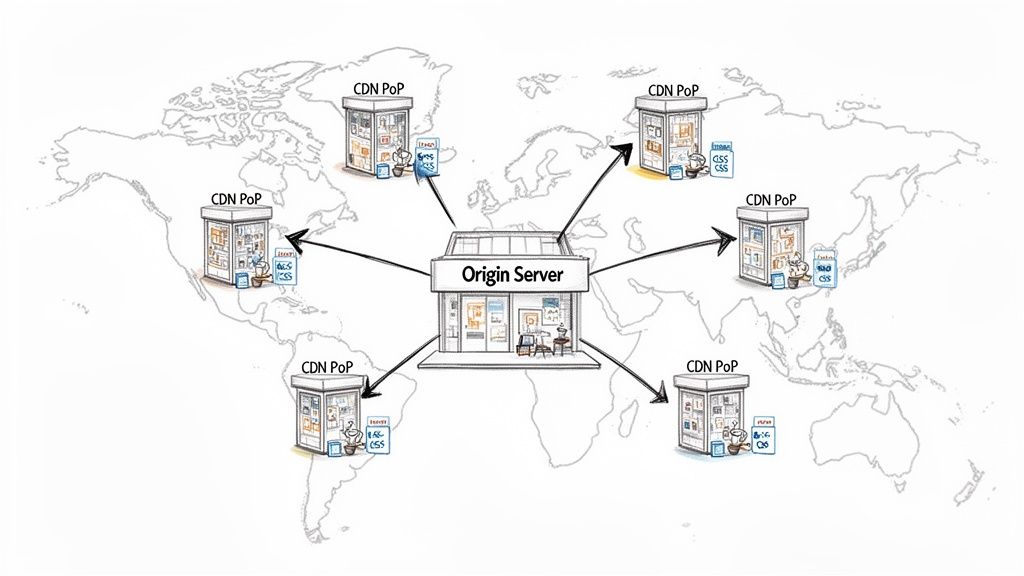
Think of your web host as the main kitchen of a fantastic restaurant. It’s where the master chefs work and where all the original, fresh ingredients are stored. But if someone from another country wants a taste, shipping a fresh plate all that way would be slow and pretty inefficient.
This is where a CDN comes in. It’s like setting up a global chain of smaller, super-efficient kitchens that only stock your most popular, ready-to-serve dishes. These local kitchens (called Points of Presence, or PoPs) store copies of your website’s static files—things like images, CSS stylesheets, and JavaScript.
So, when that user in London visits your site, the CDN serves up most of the content from a local London "kitchen" instead of waiting for it to come all the way from Dallas.
The Host And CDN Partnership
It's important to remember that a CDN doesn't replace your host; it supercharges it. Your web host is still the single source of truth for your entire website. It’s where your WordPress database lives, where you upload new blog posts, and where dynamic actions, like processing a payment, actually happen. If you want a refresher, we cover the essentials in our guide to WordPress hosting.
The CDN works hand-in-hand with your host. It intelligently checks in with the main server, grabs the latest versions of your static content, and distributes them across its global network.
Here’s how the team works together:
- Origin Server (Your Host): This is the master copy. It holds your full website and handles all the unique, dynamic requests that can't be cached.
- Edge Servers (The CDN): These are the local "kitchens." They store copies (caches) of your static files in dozens or even hundreds of locations worldwide, ready for lightning-fast delivery.
- User Request: When someone visits your site, their request is automatically routed to the closest edge server, which delivers the bulky parts of the page almost instantly.
This diagram shows it perfectly. A visitor connects to the nearest CDN server, which only needs to pull data from your main host if it doesn't already have a fresh copy.
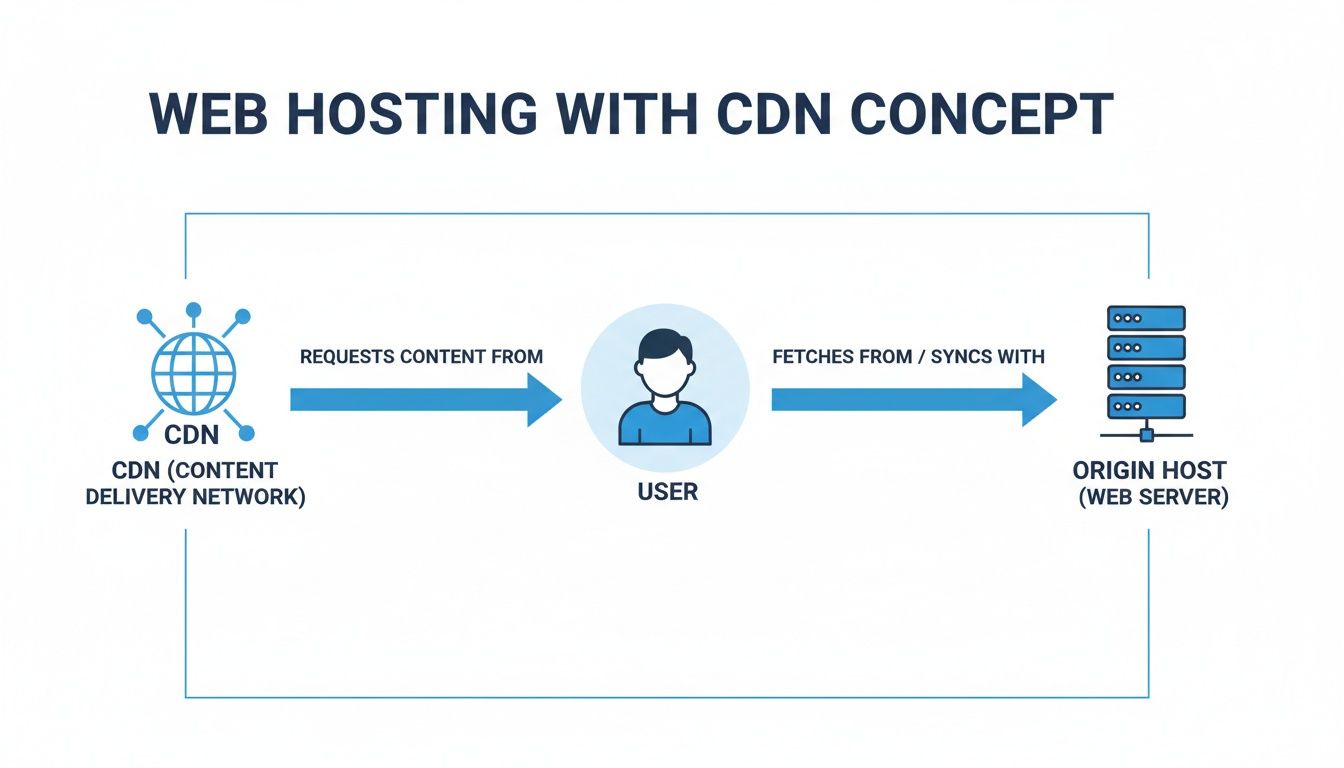
You can see how the CDN acts as a fast-acting middleman, taking a huge amount of pressure off your primary server.
Why This Matters For Modern Websites
Today, users don't just hope for fast websites—they expect them. This demand is why the global CDN market is projected to explode from USD 27.25 billion in 2025 to a massive USD 42.89 billion by 2030. It's not just hype; the performance gains are real. Studies have shown CDNs can slash bounce rates by up to 32%.
By pairing your web hosting with a solid CDN, you're not just buying speed. You're building a stronger foundation for better SEO rankings, higher conversion rates, and an all-around better experience for your visitors.
Hosting Alone Vs Hosting With CDN
To put it all into perspective, here's a quick look at how a standard hosting setup stacks up against one that's been boosted with a CDN.
| Feature | Standard Web Hosting | Web Hosting With CDN |
|---|---|---|
| Performance | Speed depends entirely on the server's single location. | Delivers content from the closest server, drastically cutting latency. |
| Global Reach | Slower load times for international visitors. | Fast, consistent experience for users anywhere in the world. |
| Server Load | A single server handles all traffic, risking overload. | Distributes traffic across many servers, reducing strain. |
| Security | Basic protection at the host level. | Adds a powerful layer of security, like DDoS mitigation. |
| Uptime & Reliability | Downtime affects all users if the main server fails. | Can serve cached content even if the origin server is down. |
As you can see, adding a CDN transforms your hosting from a solo act into a global powerhouse.
The Core Benefits For Your WordPress Site
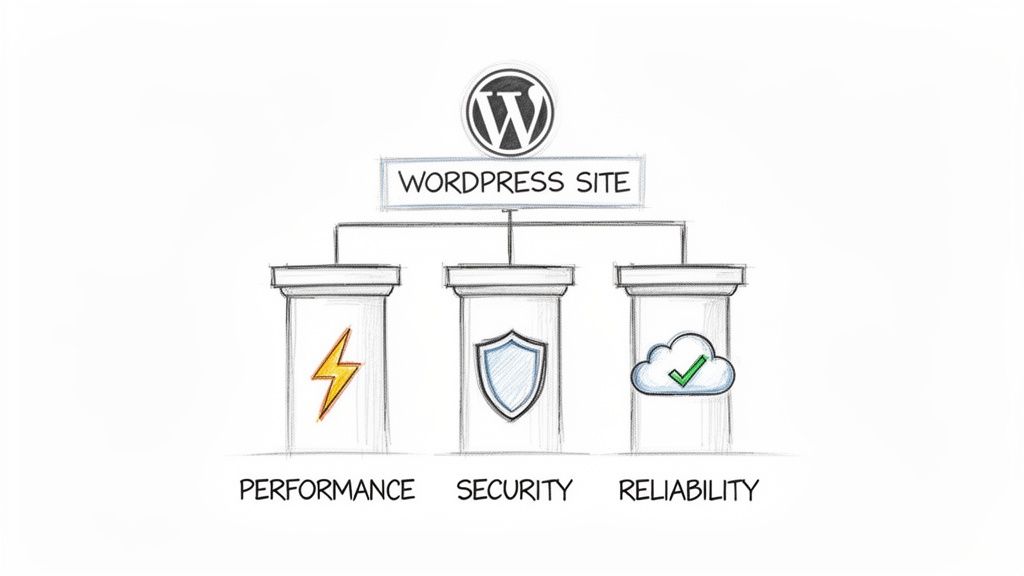
Pairing a CDN with your web hosting isn't some minor technical tweak; it's a serious business decision that pays off in big ways. It's not just about "making your site faster." This partnership strengthens your WordPress site in three key areas: performance, security, and reliability. Each one directly improves the experience for your visitors, builds trust in your brand, and helps your bottom line.
Here's an easy way to think about it: if your hosting is the car's engine, the CDN is a combination of an advanced suspension system, armor plating, and a turbocharger. It smooths out the ride for a global audience, protects the engine from attacks, and kicks in extra power right when you need it.
Radical Performance Gains
The first thing you'll notice with web hosting and a CDN is a massive speed boost. We're not talking about shaving off a few milliseconds. We're talking about a fundamental change in how your site feels to someone on the other side of the world. The magic behind this is how a CDN attacks latency using edge caching.
A CDN stores copies of your site's assets—images, CSS files, JavaScript—on servers located all over the globe. This simple move dramatically cuts down the physical distance your data has to travel. That has a huge effect on a metric Google really cares about: Time to First Byte (TTFB). A snappy TTFB means your server responds almost instantly, making your whole site feel incredibly responsive.
A fast site isn't a luxury; it's a requirement. Study after study shows that a tiny one-second delay in page load time can lead to a 7% drop in conversions. For an e-commerce store pulling in $100,000 a day, that single second could cost over $2.5 million in lost sales each year.
This near-instant loading experience keeps people on your site, slashes your bounce rate, and sends all the right signals to search engines, helping your rankings climb over time.
Enhanced Security And Protection
A modern CDN is more than a speed tool; it’s a powerful security shield between your website and the wild west of the internet. Think of it as a digital bouncer, checking and filtering traffic long before it gets anywhere near your actual server. This adds a crucial layer of defense against the most common cyber threats.
One of its biggest jobs is stopping Distributed Denial-of-Service (DDoS) attacks. These nasty attacks try to knock your site offline by flooding it with a tidal wave of junk traffic. A CDN’s huge, spread-out network can simply absorb and brush off these attacks, keeping you online and in business.
Here's how a CDN beefs up your security:
- DDoS Mitigation: It soaks up giant traffic floods, telling the difference between real visitors and attack bots.
- Web Application Firewall (WAF): Many CDNs include a WAF that blocks common hacks like SQL injection and cross-site scripting right at the edge of the network.
- Bot Filtering: It spots and blocks malicious bots trying to scrape your content, brute-force your login page, or cause other trouble.
By handing off security duties to the CDN, you’re protecting your core hosting server, earning your visitors' trust, and making sure your business isn't derailed by bad actors.
Unmatched Reliability And Uptime
Finally, a CDN makes your site incredibly reliable. Your origin server is a single point of failure. If it goes down or gets swamped with visitors, your website is offline for everyone. A CDN adds a safety net of redundancy that protects your uptime.
The main way it does this is through load balancing. By spreading visitor requests across its massive global network, a CDN ensures your one server never becomes a bottleneck during a traffic spike—like after a successful marketing campaign or a viral tweet.
What's more, if your main server ever does go offline for a bit, many CDNs can keep serving the cached versions of your pages to visitors. This prevents a complete outage, saving your revenue and your reputation. For any business, that kind of resilience is priceless.
Choosing The Right Hosting And CDN Combination
Picking the right web hosting and CDN combo can feel like a tough call. But it gets a whole lot easier when you break it down into two simple parts: the quality of your hosting and the power of the CDN sitting on top. A rock-solid hosting environment is your starting point—it's non-negotiable for a fast website.
Think of your hosting server as the engine in your car. It doesn't matter how slick the paint job is; if the engine is weak, you're not going anywhere fast. For a WordPress site, this means you need a hosting setup with its own dedicated resources and a modern server stack.
This is where platforms like WPJack really shine. You get direct access to top-tier cloud infrastructure from providers like DigitalOcean, Vultr, or Hetzner. This approach completely sidesteps the classic problems of shared hosting, where your site’s performance gets dragged down by other websites on the same server. By starting with a solid cloud VPS, you're making sure your "engine" is powerful enough before you even think about adding a CDN. For a deeper dive, check out our guide on selecting the best WordPress hosting for a small business.
Evaluating CDN Features And Network Reach
Once your powerful hosting is locked in, it's time to look at the CDN itself. Whether it’s bundled with your host or a separate service like Cloudflare, a few key things will tell you if it's any good. The most important is the CDN's global network.
A CDN's real power comes from its Points of Presence (PoPs)—these are the data centers scattered across the globe that hold copies of your website's files. The more PoPs a CDN has in the right places, the faster your site will be for visitors everywhere. A CDN with 20 PoPs is decent; one with over 200 is fantastic.
The market for this is huge, especially in North America, which is expected to make up 31-38.7% of global CDN revenue by 2025, hitting an estimated USD 9.1 billion. This means you have access to some incredibly robust networks from players like Cloudflare and AWS, which fits perfectly with a vendor-agnostic approach where you can connect to the best infrastructure out there.
Caching Capabilities And Security Protections
Beyond the size of the network, you need to look at what the CDN actually does. Its caching abilities are at the top of the list. At a bare minimum, it needs to be great at handling static files like images, CSS, and JavaScript. But the best CDNs also give you advanced options for caching dynamic content, which is a game-changer for e-commerce shops or membership sites.
Security is the other piece of the puzzle. A good CDN should be your website's first line of defense. Make sure it includes these core security features:
- DDoS Mitigation: The power to soak up and block massive traffic floods that are designed to crash your site.
- Web Application Firewall (WAF): A smart filter that stops common hacks and malicious requests before they ever get to your server.
- SSL/TLS Encryption: Automatically handles security certificates to encrypt the connection between your users and the CDN.
Choosing a CDN isn't just a technical task; it's a strategic business decision. The right combination of hosting and CDN directly impacts user experience, which in turn influences conversions, search rankings, and brand perception.
Comparing Pricing Models And Scalability
Finally, let's talk about cost. CDN pricing usually comes in a few flavors. Some providers have a generous free plan, which is perfect for smaller sites just starting out. Others use a pay-as-you-go model where you only pay for the bandwidth you use—great for sites with fluctuating traffic. For bigger sites, enterprise plans often have a fixed monthly cost for a set amount of data and premium features.
Your goal is to find a model that fits your current traffic and can grow with you. A solution that offers a free or cheap entry point but has the muscle to handle enterprise-level traffic down the road gives you the best of both worlds. By carefully weighing your host's power, the CDN's network, its key features, and its pricing, you can build a web hosting and CDN combination that's a perfect fit for you.
Setting Up A CDN On Your WordPress Site
Alright, we've covered the theory. Now let's get our hands dirty. The good news is that integrating a CDN with WordPress isn't the rocket science it used to be. You don't need to be a developer to pull this off.
Modern control panels and a few smart plugins let you connect your site to a global network in just a few minutes, often without ever looking at a line of code. We’re basically just telling our website to send its static files (images, CSS, JavaScript) through the CDN, which then does all the heavy lifting.
Your Step-By-Step Integration Plan
I'll break this down into three main phases: getting your CDN account ready, pointing your domain to the CDN, and then telling WordPress to play nice with it. It's a straightforward process that makes world-class speed achievable for anyone.
Here's the general game plan:
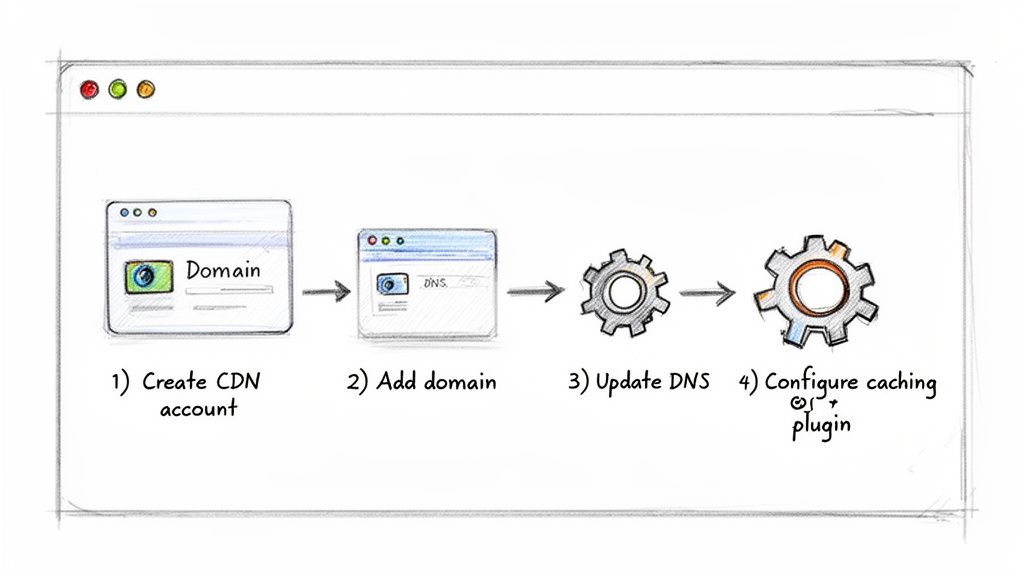
- Create Your CDN Account: First things first, sign up with a CDN provider. Big names like Cloudflare or BunnyCDN have easy-to-use dashboards and often offer free plans that are perfect for getting your feet wet.
- Add Your Website: During the setup, the CDN will ask for your domain name. It then scans your site's DNS records to get ready for the switch.
- Update Your Nameservers: This is the most important step. Your CDN will give you two new nameservers. You just need to log in to your domain registrar (like Namecheap or GoDaddy) and swap your current nameservers with the new ones from the CDN. This one simple change is what routes all your traffic through the CDN's network.
This DNS update is where the magic happens. Think of it like changing your business's shipping address to a global logistics hub. From now on, every request from a visitor hits the CDN first, and its network figures out the absolute fastest way to get your content to them.
Configuring WordPress For CDN Delivery
Once your traffic is flowing through the CDN, there’s one last piece to the puzzle. We need to make sure WordPress actually uses the CDN to serve up your files.
Right now, an image on your site might load from a URL like yourdomain.com/wp-content/uploads/image.jpg. We need to tell WordPress to rewrite that URL to something like cdn.yourdomain.com/.../image.jpg.
Don't worry, you don't have to do this by hand. The best WordPress caching plugins can handle this automatically.
Using a Caching Plugin:
Plugins like FlyingPress or WP Rocket have dedicated CDN settings built right in. The setup is usually dead simple:
- Find the CDN settings inside your caching plugin.
- Check the box that says something like "Enable Content Delivery Network."
- Paste the CDN URL or CNAME (your CDN provider will give you this) into the field.
- Save your changes, and you're done. The plugin will take care of rewriting all the URLs for your images, CSS, and JavaScript files.
This whole process is even cleaner when you're working with a modern server management tool like WPJack. Starting with a fresh, optimized server means you don't have to fight with old configurations or plugin conflicts. It's the perfect foundation for adding a powerful CDN.
A clean dashboard simplifies everything, letting you manage your server and sites without the command-line headaches.
This kind of setup lets you focus on what really matters, like getting your CDN configured perfectly.
Post-Setup Verification
After you’ve set everything up, don't just walk away and assume it's working. You need to double-check that your files are actually being served from the CDN's edge servers. This final check ensures you're getting the performance boost you signed up for with your web hosting with a CDN.
There’s an easy way to verify this using your browser’s developer tools:
- Open Developer Tools: On your website, right-click anywhere on the page and choose "Inspect."
- Go to the Network Tab: In the panel that pops up, click on the "Network" tab.
- Reload the Page: Just hit refresh. You’ll see a list of every file your site is loading.
- Check the URLs: Look at the "Domain" column for your images, CSS files, and JavaScript. You should see the CDN's address (like
cdn.yourdomain.comor whatever URL the provider gave you) instead of your own domain.
If you see those CDN URLs, pop the champagne! Your WordPress site is officially hooked up to a global content delivery network. Your visitors, no matter where they are in the world, are now getting a much faster, more reliable, and more secure experience.
Optimizing And Monitoring Your CDN Performance
Getting your CDN up and running is a great start, but the real magic happens when you start monitoring and tweaking it. Think of it like tuning a high-performance engine. The initial setup gets you on the road, but the fine-tuning is what unlocks its full potential. This means digging into your CDN's settings to make sure every single asset gets delivered as fast as humanly possible.
When it comes to web hosting with a CDN, the best place to start is with your cache settings. One of the simplest yet most powerful tweaks you can make is setting the right cache expiration headers. These headers basically tell a visitor's web browser how long it should hang onto local copies of your files, like your logo or CSS stylesheets.
The longer the expiration time, the less a repeat visitor has to re-download. This makes their next visit feel almost instant, reduces requests to your server, and just makes for a much better user experience.
Fine-Tuning Your Asset Delivery
Beyond the basics of caching, modern CDNs have some slick tools to shrink your files as they're delivered. You'll want to enable modern compression methods like Brotli, which often does a much better job than the older Gzip format at squishing text-based files like HTML, CSS, and JavaScript.
On top of that, most quality CDNs can automatically minify your code. This is a fancy way of saying it strips out all the useless stuff—like extra spaces and comments—from your CSS and JavaScript files without breaking them. The result? Smaller files that download and run faster, giving your site's load time a direct boost.
To keep things running smoothly, you need to get comfortable with your CDN provider's dashboard. For instance, good Cloudflare management is essential if you want to get the most out of your setup.
Don't just "set it and forget it." Your website is a living entity. Regularly review your CDN analytics and performance metrics to identify new opportunities for optimization. A small adjustment today can lead to significant speed gains tomorrow.
Handling Dynamic Content And Media
If you're running an eCommerce store or a membership site, you have a unique challenge: dynamic content. Things like a user's shopping cart or a personalized dashboard can't be cached like a static image. If you get this wrong, you could end up showing one user's private info to someone else. It's a serious problem.
To get around this, you have to create specific rules that tell the CDN to skip caching on certain pages. Luckily, most CDN providers and WordPress caching plugins let you easily bypass the cache for specific URLs or cookies that are tied to logged-in users.
Media is another huge piece of the puzzle. Video streaming is the king of the CDN world, pulling in a massive 65.4% of the revenue. This just goes to show how critical it is to not just have a CDN, but to have one that’s properly configured for media. For any WPJack user with a site full of videos and images, this is non-negotiable, especially since performance optimization tools—often bundled with CDNs—make up almost 40% of the CDN service market.
Key Metrics To Watch
You can't improve what you don't measure. Make it a habit to check your CDN's analytics dashboard and use third-party tools to see how your site is performing. If you want a really deep dive into your site's numbers, check out our guide on how to elevate your WordPress site with Google's Site Kit plugin.
Here's a quick rundown of the essential metrics you should be keeping an eye on in your CDN's analytics dashboard.
Key CDN Metrics To Monitor
| Metric | What It Means | Why It's Important For WordPress |
|---|---|---|
| Cache-Hit Ratio | The percentage of requests served from the CDN's cache instead of your main server. | This is your #1 metric. A high ratio (aim for 90%+ for static files) proves your CDN is doing its job and speeding things up. |
| Bandwidth Usage | The total amount of data transferred from the CDN to your visitors. | This helps you keep an eye on costs and spot traffic trends. A sudden spike could be a successful post or a potential security threat. |
| Latency | The time it takes for data to start moving after a request is made. | A good CDN should slash latency for users worldwide. Monitoring this ensures you're delivering a fast experience everywhere. |
| Error Rate | The percentage of requests that failed. | A rising error rate is a red flag. It could point to issues with your server or a bad CDN setting that needs fixing ASAP. |
By keeping tabs on these numbers, you can spot problems before they get out of hand and continuously fine-tune your setup for the best possible performance.
Common Questions About Web Hosting With CDN
Even after laying out all the benefits, a few questions usually pop up. The world of web hosting and CDNs can feel a bit tangled at first, but the most common concerns are pretty straightforward. Let’s clear up a few final points so you can move forward with confidence.
My goal here is to tackle those practical “what ifs” and “how does this really work” questions. By hitting these head-on, we can get rid of any lingering doubts.
Will A CDN Replace My Web Hosting?
This is the number one question I get, and the answer is a hard no. A CDN is a powerful sidekick to your web host, but it absolutely does not replace it. Your web host is the foundation—the permanent address where all your website’s core files and its database live.
Here’s an analogy I like: think of your web host as the master chef in the main kitchen, creating every original dish. The CDN is like a global network of food trucks that delivers a limited, popular menu (your static files like images and CSS) to customers almost instantly. Those trucks can’t cook up anything new; they have to go back to the main kitchen to restock.
Every time a user does something dynamic, like logging in or submitting a contact form, that request still has to go directly back to your hosting server. The CDN just handles the heavy, repetitive lifting of delivering static assets, but your host is always the source of truth.
Is A CDN Difficult To Set Up On WordPress?
It used to be, but not anymore. What once took a developer is now usually just a few clicks away. Most modern CDNs and WordPress caching plugins have made the whole process incredibly simple.
The typical setup these days looks something like this:
- Sign up for a CDN service: Many, like Cloudflare, have fantastic free plans to get you started.
- Add your domain: The CDN provider will walk you through this step by step.
- Update your DNS nameservers: This sounds technical, but it’s really just copying and pasting two lines of text at your domain registrar. This one change is what routes all your traffic through the CDN’s network.
- Configure a WordPress plugin: Inside a great caching plugin like FlyingPress or WP Rocket, you’ll probably just check a box to enable the CDN integration.
And if you’re using a managed platform like WPJack, it’s even easier. The server is already fine-tuned for performance, so adding a CDN on top is a simple, powerful boost without any server-side headaches.
Do I Need A CDN If My Audience Is Local?
While the speed benefits are definitely more dramatic for a global audience, a CDN still offers huge advantages even if all your visitors are in the same country or state. The performance boost is just one piece of the puzzle.
First, by offloading traffic to the CDN, you seriously reduce the load on your main server. This keeps your site snappy and responsive during unexpected traffic spikes, preventing slowdowns or even crashes. Even within a large country, grabbing an image from a server a few hundred miles away is always going to be faster than one a few thousand miles away.
A CDN isn’t just a performance tool; it’s a critical layer of security and reliability. The protective benefits alone often justify using a CDN, even for websites with a purely local audience.
Second, and just as important, is the security angle. A CDN acts as your frontline defense, filtering out malicious bots and absorbing DDoS attacks before they ever get a chance to hammer your hosting server. That kind of protection is priceless for any website, regardless of where its audience lives.
How Much Does A CDN Cost?
CDN pricing is incredibly flexible, with solid options ranging from completely free to thousands of dollars a month for huge enterprise sites. This scalability is what makes the technology so accessible to everyone.
Many of the best providers offer robust free plans that are more than enough for small businesses, blogs, and personal portfolios. These plans usually come with global caching, basic DDoS protection, and a free SSL certificate. You get the core benefits of web hosting with a CDN without spending a dime.
Paid plans typically run on a pay-as-you-go model, scaling with your bandwidth needs. Moving to a paid tier unlocks advanced features like a Web Application Firewall (WAF), automatic image optimization, and priority support. The key takeaway is that world-class performance is available at every budget.
Ready to pair your WordPress site with a powerful, optimized server? WPJack gives you a streamlined control panel to manage your sites across top cloud providers like DigitalOcean and Vultr. Get the performance of a dedicated cloud server without the command-line complexity. Start for free at https://wpjack.com.
Free Tier includes 1 server and 2 sites.