At its core, a server address is like a unique street address for a website on the internet. It tells every computer exactly where to find the files it needs to show you a webpage. This is the fundamental piece that makes browsing the web possible, turning the human-friendly domain names we type into machine-readable coordinates.
Without it, your browser would have no idea where to send its requests. The internet would just be a chaotic mess of disconnected computers.
Your Website's Home on the Internet
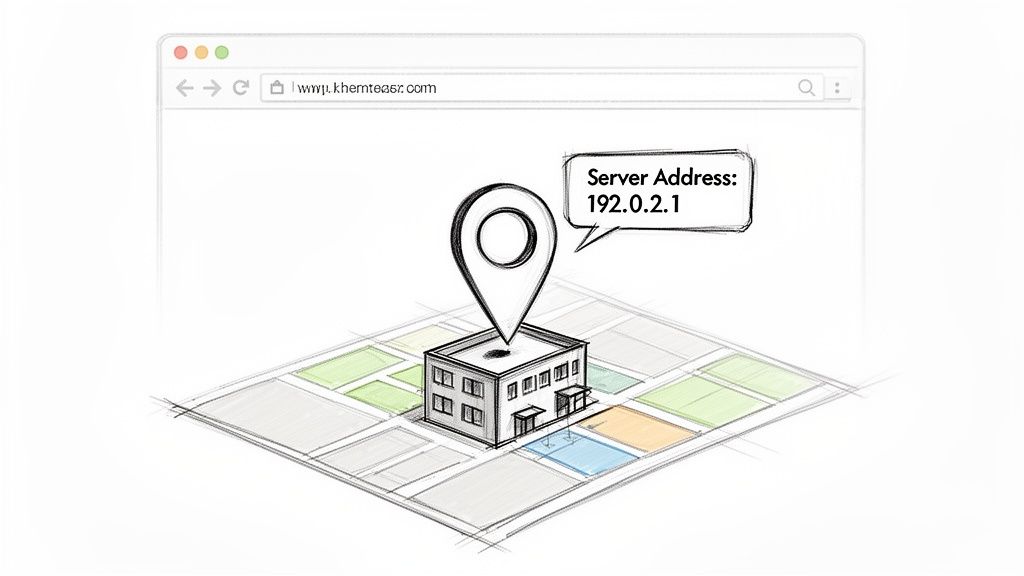
Think of the internet as a giant, sprawling city with billions of buildings. Each one of those buildings—a website, an app, or an email service—needs a specific address so information can get to the right place. A server address is that exact location, making sure that when someone types in your domain, they land on your digital doorstep, not your competitor's.
This digital address is the bedrock of every single online interaction. It’s what connects a user's click to the content they want to see, making the whole thing feel instant and seamless. But what is it, really? In technical terms, it's most often an IP (Internet Protocol) address, which is a unique series of numbers identifying a server on the internet.
The Foundation of Online Communication
Every time you do anything online, a server address is quietly working in the background. This simple but critical identifier is responsible for a few key things:
- Website Accessibility: It points browsers to the right server where all your website's files live. If the address is wrong, your site is basically invisible.
- Data Transfer: It acts like a digital postal service, guiding packets of data across the internet to make sure emails, files, and everything else arrive where they're supposed to.
- Service Connections: It lets apps like SFTP clients or email platforms connect to the correct server to do their jobs, like uploading files or sending out your newsletter.
In short, the server address is the linchpin holding the entire web together. It translates our simple commands into a language network hardware can understand, directing traffic with incredible precision across a global network.
Ultimately, understanding what a server address is goes beyond just knowing it's a string of numbers. It’s your website’s unique plot of land in the vast digital world. Getting a handle on this concept is the first real step toward managing your online presence, whether you're pointing a new domain or troubleshooting a pesky connection issue.
The Different Kinds of Server Addresses
A server address isn't just one single piece of information. It's more like a complete mailing address, where each part plays a role in getting you exactly where you need to go. Think of it like a business card that lists a street address, the company's name, and a specific department to contact. Each piece of that info guides you differently, and the same principle applies to servers.
To get anything done online, computers rely on a few different types of identifiers. While they might all point to the same physical server, each one is used for a unique purpose. Let's break down the main types you'll run into.
IP Addresses: The Digital GPS Coordinates
At its core, every server has an IP (Internet Protocol) address. This is a unique string of numbers, like 203.0.113.10, that acts as the server's precise location on the vast map of the internet. It works just like GPS coordinates for a building—incredibly accurate for machines but not something you'd want to memorize.
Every single device connected to the internet, from your smartphone to a massive web server, has one. It's the fundamental digital ID that allows everything to connect and communicate. By 2025, a mind-boggling 3.41 billion IPv4 addresses had already been allocated worldwide, showing just how much the internet has grown since the 80s.
Hostnames and Domain Names: The Memorable Storefront
Computers are great with numbers, but people remember names. That's where a hostname or domain name, like wpjack.com, comes in. It’s a human-friendly alias for that clunky numerical IP address. Think of it as the big, friendly sign on a storefront—easy to recall, type into a browser, and share with a friend.
When you type a domain name into your browser, a background service called the Domain Name System (DNS) acts like the internet's phonebook. It quickly looks up the friendly name and translates it into the server's actual IP address so your browser can connect. Getting a handle on how this translation works often involves knowing how to show DNS records.
To make these concepts a bit clearer, here's a quick cheat sheet comparing the different parts of a server address and what they do in the real world.
Server Address Types at a Glance
| Component | Technical Role | Real-World Analogy |
|---|---|---|
| IP Address | The server's unique numerical identifier on the network. | A building's exact GPS coordinates. |
| Domain Name | A human-friendly alias that points to an IP address. | The memorable name of the business in that building. |
| Port Number | Specifies a particular service or application on the server. | The specific apartment number or loading dock at the address. |
This table shows how each piece works together—the domain gets you to the right building, the IP address confirms the location, and the port number directs you to the right door.
IPv4 vs IPv6: Two Generations of Addresses
You’ll often see "IPv4" and "IPv6" mentioned when talking about IP addresses. They both do the same job but are from two different eras of the internet.
- IPv4: This is the original system, like our
203.0.113.10example. It was built to support about 4.3 billion unique addresses, which sounded like a lot at the time. - IPv6: The modern replacement, created because we were literally running out of IPv4 addresses. It uses a much longer format and can support a practically infinite number of devices.
Think of IPv4 as an old phone number system that simply ran out of available combinations. IPv6 is the new system with way more digits, making sure we won’t run out of addresses for generations to come.
Port Numbers: The Specific Loading Dock
Finally, we have the port number. This is an extension added to an IP address that directs traffic to a specific application running on the server. Imagine a massive warehouse (the server) with dozens of different loading docks (the ports).
Each dock is numbered and handles a different type of delivery. For example:
- Port 80 and 443: Reserved for standard web traffic (HTTP and secure HTTPS).
- Port 22: The go-to port for secure remote connections (SSH).
- Port 21: Used for old-school file transfers (FTP).
This system is crucial. It ensures that a request for a webpage doesn't get mixed up with an email being sent or a file being uploaded to the very same server. If you're curious about different server setups where this matters, you can explore our breakdown of cloud hosting vs VPS hosting.
Why Your Server Address Is Crucial for Your Website
Thinking about your server address might seem like getting lost in the technical weeds, but it's one of the most fundamental parts of your website's success. This digital identifier directly impacts everything from whether people can even find your site to how professional your brand looks online.
At the most basic level, your server address is all about website accessibility. If the address isn't pointing to the right server, your website is invisible. It’s like having a beautiful storefront with no street address—no matter how great your products are, nobody can find the door. Every single visitor, customer, and search engine bot relies on this address to locate your content.
The Connection to SEO and Trust
Search engines like Google are obsessed with user experience. That means they reward websites that are stable, fast, and easy to reach. A consistent, reliable server address is the bedrock of that performance. If your IP address is flaky or associated with slow connections, it signals unreliability to search engines, which can slowly chip away at your rankings.
This idea of reputation goes even deeper when it comes to email deliverability. When you send emails from your own domain (like [email protected]), email providers run a background check on your server's address.
If your server's IP has a history of sending spam or ends up on a blocklist, your most important messages—from marketing campaigns to customer support replies—are way more likely to get dumped in the junk folder. A clean IP reputation isn't a "nice-to-have"; it's essential for professional communication.
The image below breaks down how all the pieces of a server address work together to get traffic and requests to the right place.
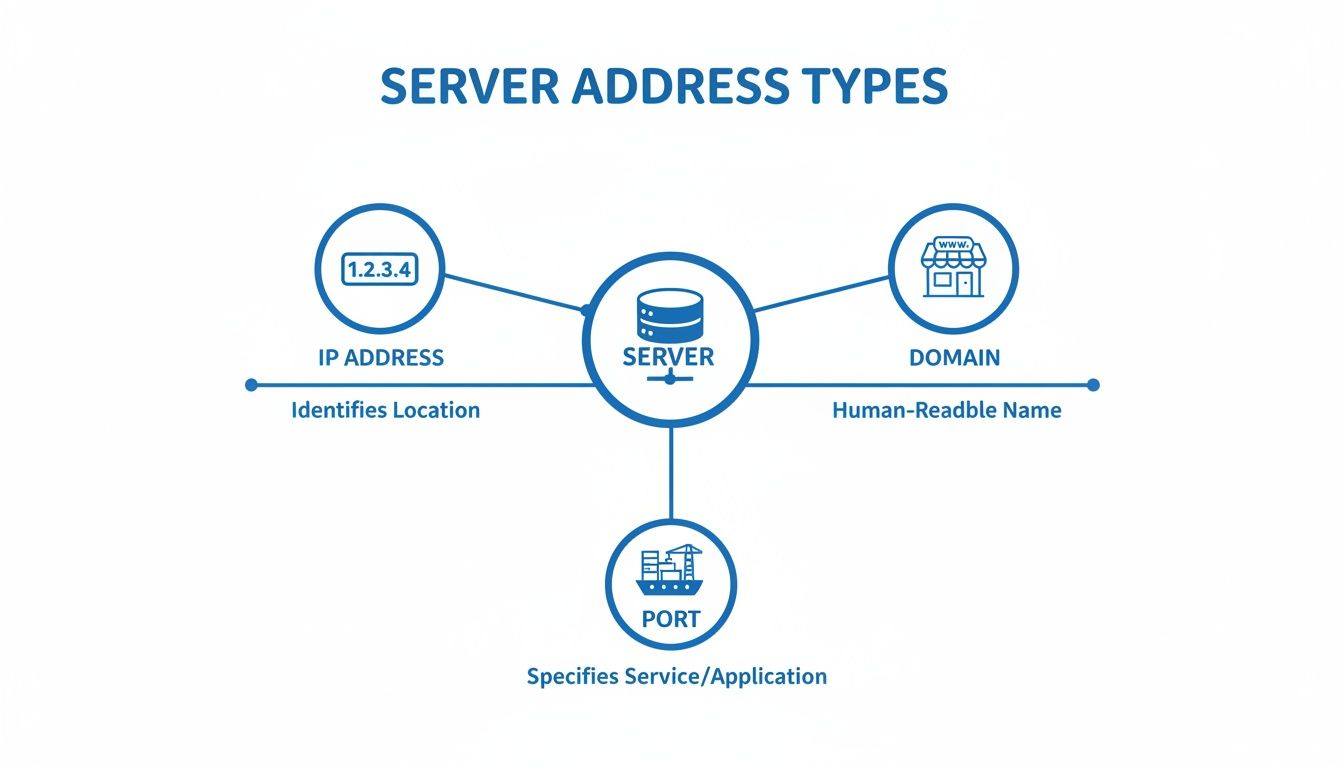
As you can see, the IP address, domain, and port number each have a distinct job, but they all team up to make sure your server is reachable and functional.
Gaining Control and Solving Problems
Ultimately, knowing your server address gives you control. When your site goes down or starts acting sluggish, that address is one of the first things you or your support team will need to figure out what's wrong. It’s the starting point for troubleshooting connection errors, DNS mix-ups, or server-side bottlenecks.
Once you understand its role, you're in a much better position to manage your online presence and keep things running smoothly for your users. The implications are pretty clear:
- For site owners: It’s your direct link to your audience.
- For developers: It’s a critical piece of the puzzle for deployments and maintenance.
- For marketers: It’s the foundation of your site's SEO health and email reputation.
Your server address isn't just some technical jargon. It's a core asset that directly impacts your site's visibility, credibility, and overall performance.
How You'll Actually Use a Server Address
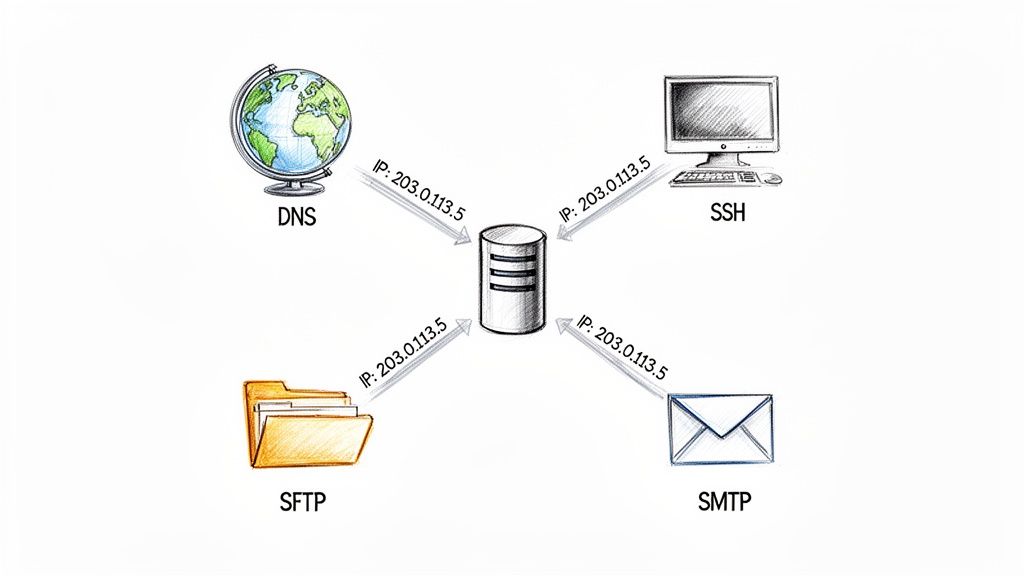
Okay, enough with the theory. Let's get down to how you'll be using your server address in the real world. This is where knowing your server's IP address or hostname really starts to matter for getting things done.
Think of it like having different keys for different doors to your server. Whether you're pushing your website live or diving in for some backend maintenance, that server address is always your starting point.
Pointing Your Domain Name With DNS
The first and most common thing you'll do is connect your domain name (like yourwebsite.com) to your server. This is done by logging into your domain registrar—where you bought the domain—and creating a DNS "A record."
This record is just a simple instruction telling the internet, "Hey, when anyone types in this domain, send them over to this specific IP address." It’s the fundamental step that makes your site visible to the world. Without it, your domain is just an empty signpost.
Managing Your Server Securely With SSH
When you need to get your hands dirty and manage the server directly, you’ll use Secure Shell (SSH). Imagine SSH as a super-secure, encrypted tunnel from your computer straight to your server’s command line. To open this tunnel, you need the server's address and either a password or a special SSH key.
This gives you raw control to run commands, which is critical for more advanced setups. With a tool like WPJack, you can actually provision a new WordPress site in just a few minutes, and it handles all these SSH connections for you behind the scenes.
Uploading Files With SFTP
You'll often need to upload files like themes, plugins, or images directly to your server. For that, you'll grab an SFTP (Secure File Transfer Protocol) client like FileZilla or Cyberduck. To connect, you'll need four pieces of information:
- Host: Your server's IP address or hostname.
- Username: Your SFTP username.
- Password: Your SFTP password.
- Port: Almost always port 22.
Once you're in, you can drag and drop files between your computer and server, just like moving files between folders on your own machine. For other things, like getting the best gaming connection, you might even need to set up port forwarding on your home router, which also relies on knowing specific addresses and ports.
By the way, the shrinking pool of IPv4 addresses is a big reason why efficient server management is so important. Projections show 3.687 billion IPv4 addresses will be allocated by the end of 2025, with the supply dropping by around 237,000 each year. This scarcity makes tools that handle addresses smartly more valuable than ever.
Finding and Using Your Server Address with WPJack
All that theory we just covered—IP addresses, hostnames, and ports—is where the rubber meets the road when you're managing a website. Thankfully, you don't have to keep it all in your head.
Platforms like WPJack are designed to cut through the noise and put your server address right where you need it. Let's walk through a quick, real-world example of how to find and use this critical info.
WPJack makes server management feel less like a chore by giving you a clean, simple dashboard. Instead of digging through config files or firing up a command line, your server’s main IP address is just a few clicks away, ready to copy and paste.
Locating Your Server Address in a Few Clicks
Finding your address is dead simple. The whole point of the WPJack interface is to get you what you need fast, so you can spend less time searching and more time building.
Here’s how easy it is:
- Log into Your WPJack Account: First, just sign in to your main dashboard. This is your home base for every server and site you've connected.
- Navigate to the Servers Page: From the main menu, pop over to the "Servers" tab. You'll see a list of all the servers you're currently managing.
- Select Your Target Server: Click on the specific server you need the address for. This takes you to that server’s dedicated management page.
- Find Your IP Address: Right there on the server details page, your Public IP is displayed loud and clear. It’s usually right at the top, along with other key stats like its location and resource usage.
And that's it. WPJack puts your server address front and center, getting rid of the technical headaches that can slow you down. This kind of quick access is a lifesaver when you're trying to manage your site's connections efficiently.
Putting Your Server Address to Work
Okay, you've got your IP address copied. Now what? You can immediately use it for some of the most common website management tasks.
Let's look at a couple of frequent scenarios.
Example 1: Setting Up an SFTP Connection
Need to upload files directly to your server? You'll use an SFTP client like FileZilla. When you're setting up a new site connection, you'll just paste the server address into the Host field. You’ll also need your SFTP username, password, and port number (usually 22), all of which are also waiting for you in your WPJack server details.
Example 2: Pointing a Domain Name
When you buy a new domain, you have to tell it where your website lives. This is done by creating an A Record in your domain registrar's DNS settings. In the A Record setup, you will paste your server's IP address into the "Value" or "Points to" field. That one simple action tells all traffic for your domain to go straight to your WPJack-managed server.
Troubleshooting Common Server Address Issues
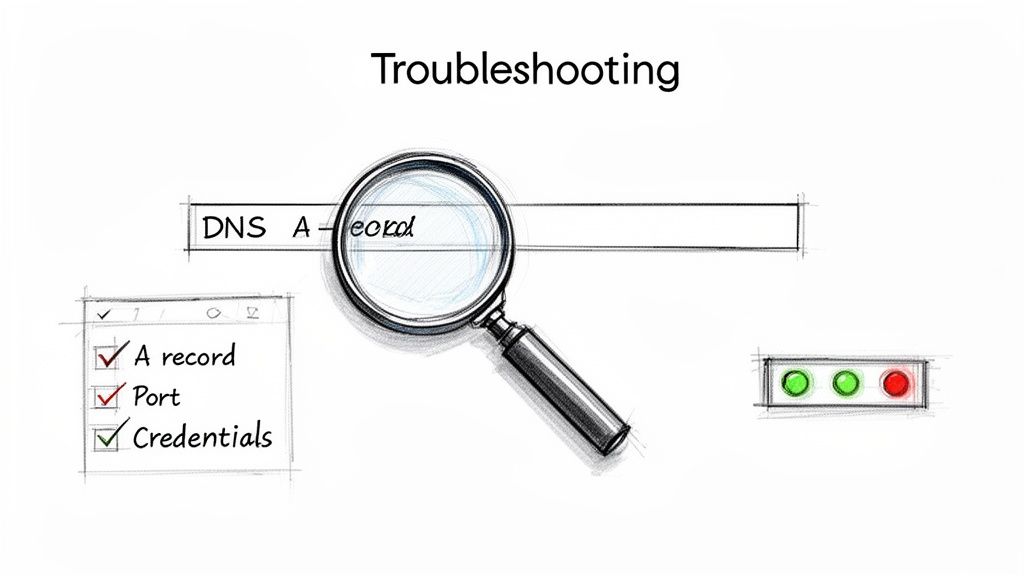
Even when you do everything right, you might still hit a snag with your server address. It's frustrating when things don't connect, but the good news is that these problems are almost always fixable with a bit of systematic checking.
Most of the time, the issue is just a simple mismatch of information—think of it as a typo in a street address. If you know where to look, you can get things back online in no time.
Common Connection Problems and Quick Fixes
When a connection fails, it usually falls into one of a few common categories. Before you start digging into complex diagnostics, always check the usual suspects first.
My domain isn’t working. The most common culprit here is DNS propagation. After you point your domain’s A record to your server’s IP, it can take anywhere from a few minutes to 48 hours for that change to spread across the internet. If you've waited and it's still not working, double-check that the A record at your domain registrar exactly matches the IP address in your server panel.
I can't connect with SFTP or SSH. This is almost always a credential issue. One wrong character will lock you out. Carefully check that you have the correct server address (IP), username, password, and port number (usually port 22 for both).
The golden rule of troubleshooting is to check one thing at a time. Verify the server address first. Then the port. Then the username, and finally the password. This methodical approach keeps you from getting overwhelmed and helps you pinpoint the exact problem.
- My domain shows the wrong website. This is a classic sign of a DNS misconfiguration. It often happens when your domain's A record is still pointing to an old server or a generic parking page from your registrar. Just log in to your domain provider and make sure the A record is pointed exclusively to your current server’s IP.
For a deeper look into server errors and fixes, our guide to virtual machine troubleshooting has more detailed solutions.
Frequently Asked Questions About Server Addresses
Now that we've gone through the nuts and bolts of server addresses, let's clear up a few common questions that pop up. Think of this as a quick debrief to make sure everything clicks into place.
Public Server Address vs Private MAC Address
It’s really easy to get all these digital addresses mixed up, so let's use a simple analogy. Your public server IP address is like your house’s mailing address. It's public, globally unique, and lets anyone on the internet send packages (or data) directly to your server.
A MAC (Media Access Control) address is totally different. It's more like the serial number stamped on the back of your TV. It’s a hardware ID used only within your local network, like your home Wi-Fi, to make sure data from the router gets to your laptop and not your smart fridge. It never leaves your local network.
Do I Need a Dedicated IP for My WordPress Site
Honestly, most websites do just fine on a shared IP address. This is where a bunch of sites live on the same server and share a single IP. It's cost-effective and works perfectly for many.
But getting a dedicated IP address—one that’s all yours—has some real perks, especially as you grow:
- Better Email Deliverability: When you send emails, their reputation is tied only to you. You won't get penalized if a "neighbor" on your shared IP starts spamming.
- Tighter Security: It shields your site from getting blacklisted because of another site's shady activities on the same server.
- App Requirements: Some payment gateways or specific third-party apps actually require a dedicated IP to function correctly.
For a personal blog or a small business brochure site, a shared IP is usually all you need. But if you’re running a high-traffic e-commerce store or your business relies on email, a dedicated IP is a smart move.
Can One Server Have Multiple Addresses
Absolutely. It’s actually pretty common for a single server to juggle multiple addresses. For starters, a server might have both an IPv4 and an IPv6 address to make sure it can talk to every device on the internet, old and new.
Another big reason is for hosting multiple websites that each need their own SSL certificate. In many setups, assigning a unique IP to each site is the cleanest way to handle secure connections for all of them.
Keeping track of all these addresses sounds like a headache, but it doesn’t have to be. With WPJack, you can get WordPress sites up and running across different cloud providers without ever having to copy-paste an IP address again. Get started for free with WPJack and make server management the easy part of your job.
Free Tier includes 1 server and 2 sites.